Your first scan
Discover how to scan your Figma designs and turn text layers into organized, multilingual variables in just a few clicks.
Sébastien Verschaete
How to
What does scanning do?
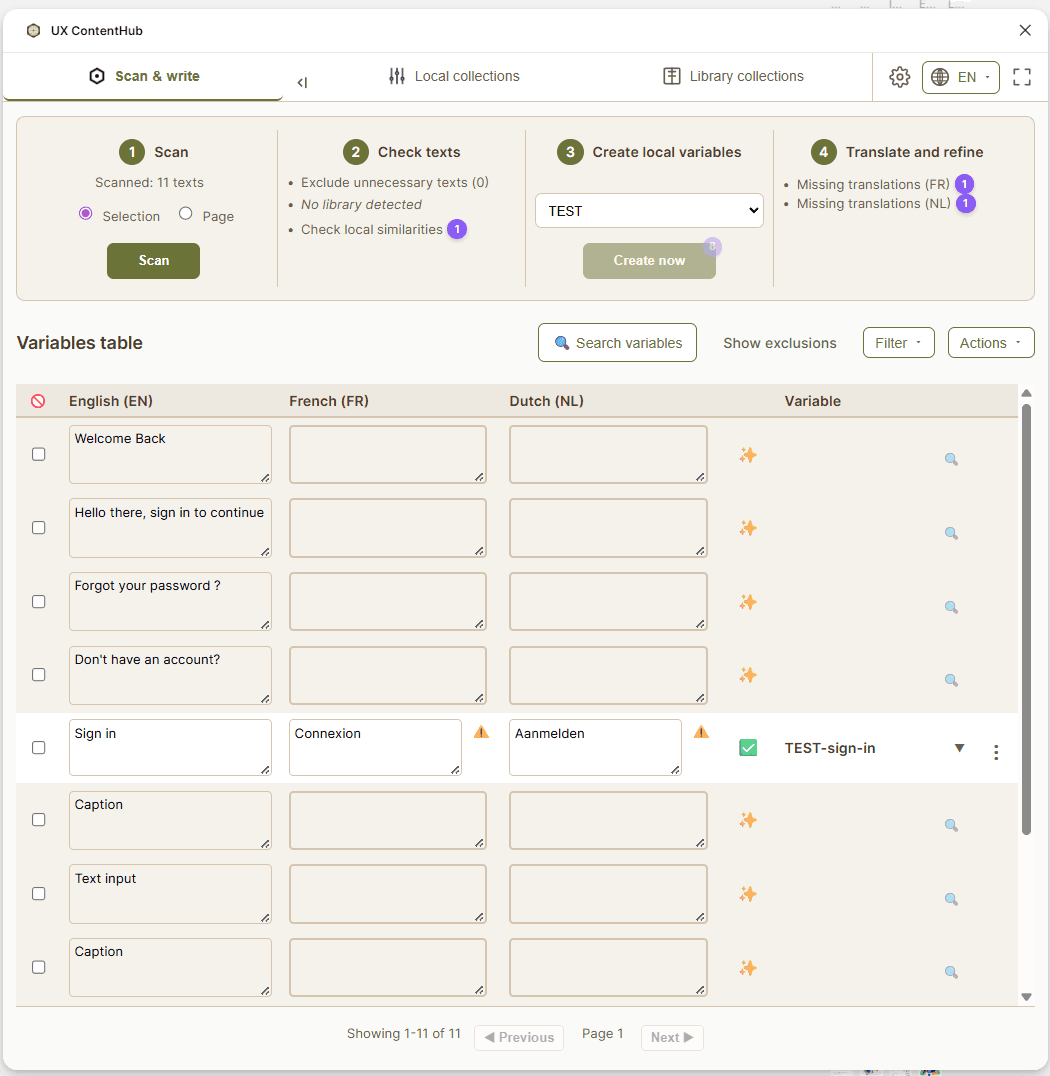
The Scan & Write tab is where your localization workflow begins. The plugin scans your Figma file for text layers, detects existing variables, matches content against your Team Library, and helps you create clean, organized multilingual variables — all in one step.
What happens when you scan for the first time?
On your first scan in a Figma file, UX ContentHub automatically creates a local variable collection named Text. This collection is structured with the language modes you configured in Settings.
From that point on, the plugin always reuses this same Text collection for all subsequent scans in that file — keeping all your variables centralized in one place. This is by design: a single local collection per file makes it easier to manage, review, and eventually export variables to your Team Library.
💡 Why set up a Team Library? When a Team Library is connected, UX ContentHub always gives priority to library variables over local ones — even if an identical variable exists locally. This ensures consistency across files and prevents duplication. A dedicated article covers the local → library export workflow in detail.
Before you start
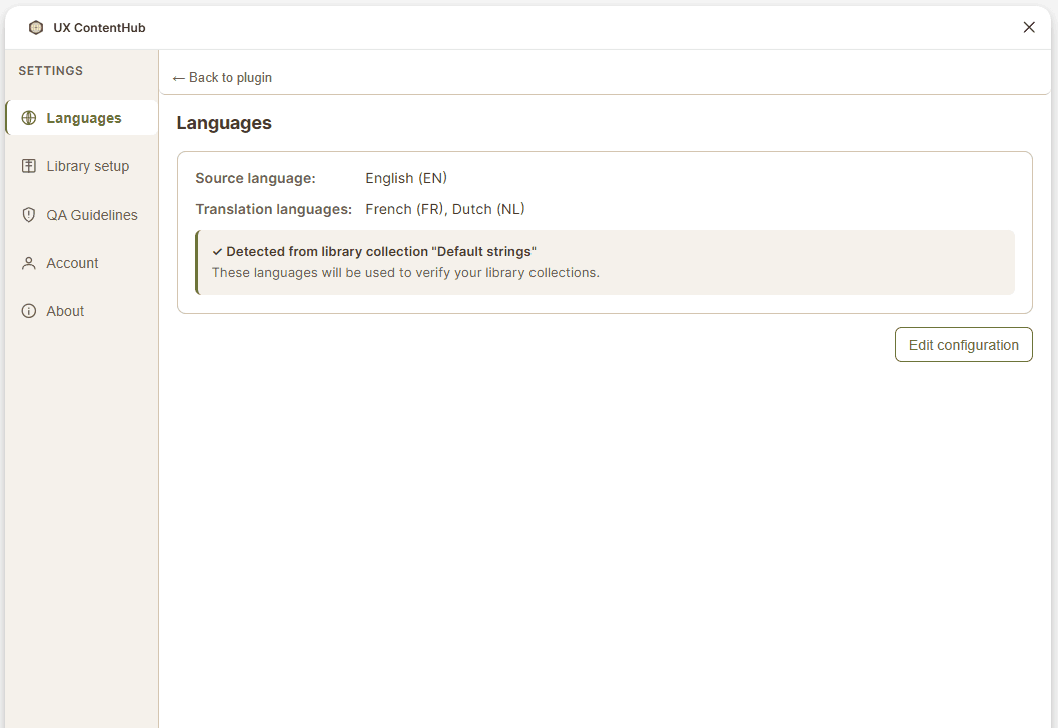
Make sure you've completed the setup in Settings:
✅ Team Library connected or local variables ready
How to run your first scan
Choose your scope
At the top of the Scan & Write tab, select:
Selection — scans only the layers you have selected on the canvas
Page — scans all text layers on the current page
For your first scan, start with a Selection to keep things manageable.
Check texts
After scanning, the plugin shows you all detected text layers. From here you can:
Exclude texts that shouldn't be translated (proper nouns, technical terms, etc.) — exclusions are shared with your team
See which texts already have a variable linked
Spot duplicate or similar texts that could share a single variable
Create local variables
Select or create a prefix to group your variables (e.g. APP-, KYC-, PCF-). The prefix helps you organize variables by project or feature.
Click Create now — the plugin transforms your text layers into organized variables in seconds, handling duplicates and naming automatically.
Translate and refine
The variables table shows your variables with a column for each configured language. You can:
Fill in translations directly in Figma
See missing translations at a glance
Flag variables for team review
Export to Excel for your translator and reimport their work
Tips
The plugin prevents you from exceeding Figma's 5,000 variable limit and will warn you before creating variables that would push you over the limit.
Your scan results are cached for 7 days per page, so you can close and reopen the plugin without losing your work.
Use the Search variables field to find any text across all languages — useful for checking consistency before creating new variables.
Next steps
Once your variables are created, explore the Local collections tab to edit translations, run health checks, and manage your collection over time.
Ready to share your variables across files? Read From local variables to Team Library to learn how to export your local collection and make it available workspace-wide.