Setting up your languages
Learn how to configure your workspace languages in UX ContentHub, the first step before you start scanning and translating your designs.
Sébastien Verschaete
How to
What is the language configuration?
When you open UX ContentHub for the first time, the setup wizard guides you through three steps. The first one is language configuration: you choose your source language (English is mandatory) and up to 9 translation languages.
This configuration applies to your entire workspace and will be used by the plugin to structure your variable collections.
Supported languages
UX ContentHub currently supports the following languages:
English (EN) — source language, always required
French (FR)
Dutch (NL)
German (DE)
Spanish (ES)
Italian (IT)
Portuguese (PT)
Polish (PL)
Swedish (SV)
Danish (DA)
Finnish (FI)
Norwegian (NO)
Czech (CS)
Hungarian (HU)
Romanian (RO)
Slovak (SK)
Croatian (HR)
Bulgarian (BG)
Turkish (TR)
Ukrainian (UK)
How to configure your languages
Open UX ContentHub in Figma
The setup wizard opens automatically on first launch. Go to Settings if you need to access it again
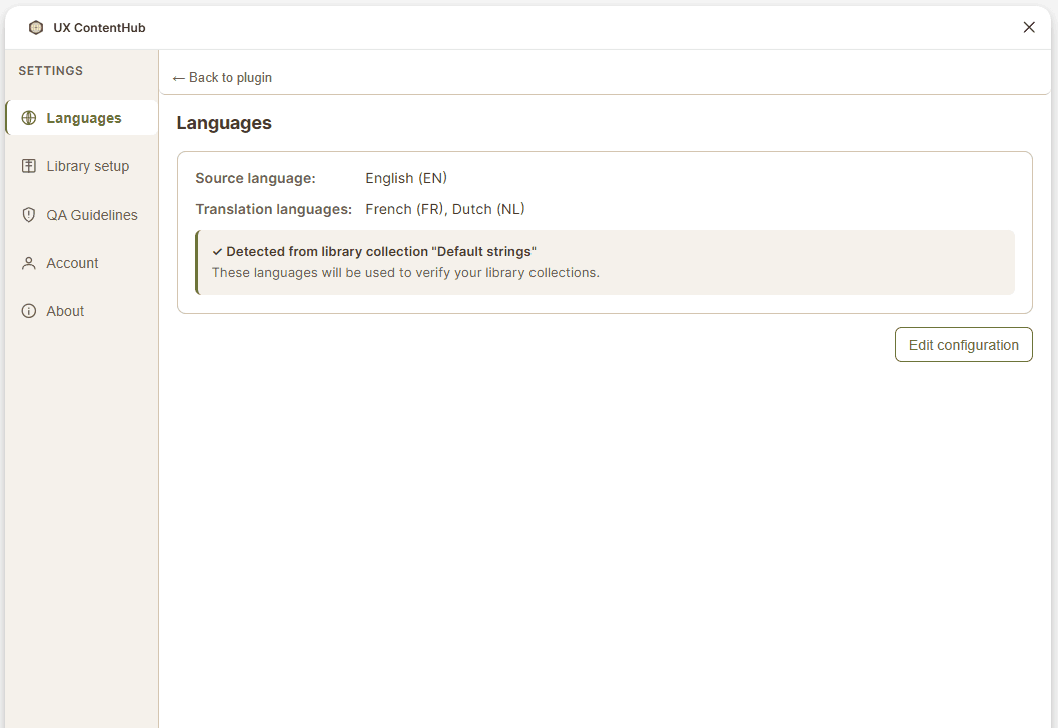
Click on Languages
Select your translation languages (up to 9) — English is automatically set as the source language
The plugin confirms: Languages configured — these will be used to verify your library collections in the next step
💡 Tip: Configure all the languages your organization might ever need — even if not every file uses all of them. Your Team Library collections will be structured around this list. Adding languages later means updating your library structure, so it's easier to set up more languages upfront than to reconfigure everything afterwards.
Can I change my languages later?
Yes. Click Edit configuration at any time from Settings. Note that changing languages after you've already created variables may require you to add missing translations for the new languages.
Next step
Once your languages are configured, move on to Library setup to connect or create your Team Library.